Necessary
Always activeSupports security, form reliability and remembering your privacy choice. It is not used for advertising.

Seven practical checks to isolate WooCommerce checkout failures, protect existing orders, and restore a reliable buying journey without unnecessary plugin changes.

A broken checkout can turn qualified buying intent into an unresolved order, a support request, or a customer who never returns. The phrase “WooCommerce checkout not working” identifies the symptom, but not whether the failure occurs in form validation, payment authorization, order creation, or confirmation.
Changing plugins immediately can remove useful evidence and introduce new faults. Instead, document one reproducible journey and follow the transaction from cart to order status. This is the same evidence-first thinking behind a useful conversion rate diagnosis: identify the failed transition before choosing a remedy.
Start with a product, shipping location, customer state, device, and payment method that produce the problem. Record whether the checkout fails before submission, hangs after the button is clicked, or redirects without confirmation. Test guest and signed-in journeys separately if both are offered.
Record when the problem began and what changed: gateway configuration, tax rules, extensions, theme updates, or hosting. Check whether the problem appears across all products or only specific combinations. This evidence distinguishes a broad outage from website integration problems affecting one branch of the buying journey.
If the customer cannot submit the form, inspect checkout validation errors before blaming the payment provider. Confirm required billing fields, shipping availability, coupon calculations, taxes, and product restrictions. A hidden required field or contradictory shipping rule can stop the request before a charge is attempted.
Test visible error messages on mobile, including whether entered details survive a correction. A technically functional form can still create avoidable checkout friction when customers cannot understand what needs changing. Record the specific field and response rather than describing the entire checkout as broken.

WooCommerce payment gateway errors may involve missing methods, rejected credentials, failed redirects, unavailable currencies, or provider-side restrictions. Compare the configured gateway with the methods actually visible to the affected customer. Check whether the processor records an authorization attempt before resubmitting anything.
The official WooCommerce payment troubleshooting guide recommends examining transaction notes, gateway logs, payment status, and configuration. Keep customer-facing messages clear and avoid displaying sensitive processor details. Consistent payment reassurance also belongs alongside relevant website trust signals, not in place of technical verification.
The ticket “WooCommerce checkout not working” may refer to a payment that succeeded externally while the shop still displays a pending order. Inspect failed WooCommerce orders, pending orders, timestamps, and order notes before triggering a second charge or manually changing status.
Review WooCommerce checkout logs under WooCommerce > Status > Logs, including gateway-specific logging when available. Match the event to the exact test time and payment reference. Distinguish a declined transaction from a missed notification, PHP error, or incomplete return journey. For urgent incidents, a focused website repair assessment is safer than making several untracked changes.
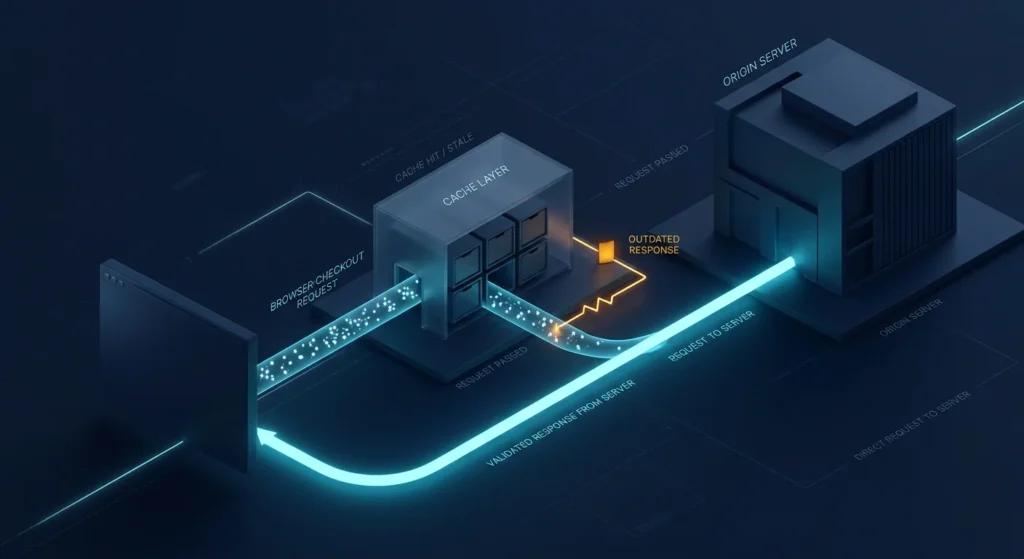
Checkout page caching can serve stale, session-specific information or interrupt dynamic requests. Check exclusions at the hosting, plugin, CDN, and proxy layers. In browser developer tools, inspect failed requests and console errors while reproducing the exact action; a spinner is only a symptom.
WooCommerce’s checkout spinner troubleshooting guidance specifically addresses cache exclusions, AJAX and Store API requests, inconsistent URLs, and blocked scripts. Review any third-party scripts affecting website performance before attributing the failure to WooCommerce core. Change one suspect layer at a time and retest.
Identify whether the store uses the WooCommerce checkout block or a classic shortcode checkout. Extensions and customizations may not support both paths identically. Review overrides, gateway integration, and recent updates against the exact checkout implementation.
Use staging and a recoverable backup for conflict testing. Disable or replace components methodically in that protected environment, then verify whether the failure disappears and returns with the same dependency. This is more reliable than repeating website performance mistakes such as deleting plugins without identifying the underlying interaction.
A working button is not a completed transaction. Confirm order creation, gateway result, status update, thank-you page, customer notification, and fulfillment handoff. Use sandbox transactions or controlled tests and confirm that no duplicate charges or messages occur. Check whether conversion tracking records a real completed order rather than merely a button click.
Prioritize a broken payment path over cosmetic issues, then document the fix, affected scenarios, rollback conditions, and results. Before increasing acquisition spend, consider how paid traffic can be wasted by conversion failures.

Treat “WooCommerce checkout not working” as a request to investigate one broken transition. A concise incident record should contain the reproduction steps, affected customers, observed evidence, isolated cause, approved change, and post-fix tests. If the cause remains uncertain, a System Review provides a structured starting point. Reliable checkout protects customer confidence, order integrity, and the value of traffic already earned.
A broken checkout should not trigger a chain of unnecessary plugin changes. Identify the actual failure, prioritize safe improvements, and verify the complete purchasing journey before scaling traffic.
Explore eCommerce OptimizationRequest a System ReviewArticle FAQ
Checkout may stop because of missing required fields, unavailable shipping methods, invalid totals, JavaScript errors, or validation conflicts. Inspect the checkout response to identify which condition prevents the transaction from continuing.
Yes. A payment may succeed at the provider while the store fails to receive or process the corresponding status notification. Verify the provider's transaction record and WooCommerce order notes before retrying payment.
Not immediately, especially on an active store. Reproduce the failure, inspect logs, and perform controlled plugin conflict tests in staging with a verified recovery path.
Yes. Block-based checkout uses Store API requests and has extension compatibility considerations that differ from classic shortcode checkout. Confirm which implementation is active before diagnosing integration failures.
Yes. Incorrect caching of dynamic checkout pages or session-dependent requests can cause outdated totals, broken interactions, and failed submissions. Verify cache exclusions across the hosting stack, CDN, and caching plugins.